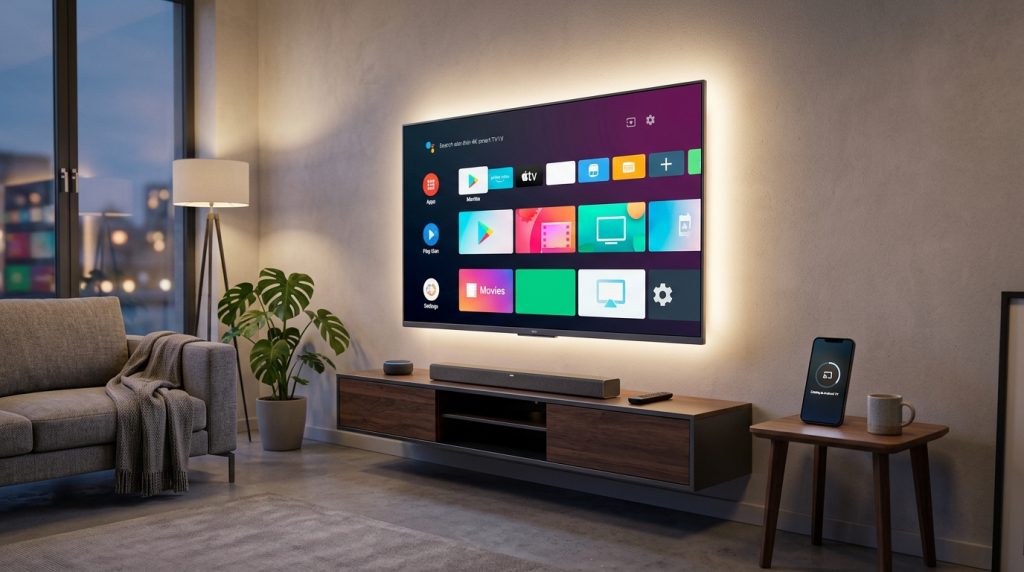
The official Google Play Store on Android TV and Google TV is intentionally curated. To ensure compliance with television remote-control navigation standards (Leanback UI), Google hides thousands of completely functional streaming platforms, retro emulators, media managers, and web browsers. Fortunately, because Android TV is built on standard Android, you can easily sideload APK files to unlock the full potential of your smart TV or streaming box.
In this guide, we walk through the three most secure, proven methods to sideload APKs onto Android TV and Google TV devices without compromising your home network security.
Method 1: Using the “Downloader” App (Simplest Method)
- Open Google Play Store on your TV and search for Downloader by AFTVnews. Install the application.
- Enable Developer Options on your TV: Navigate to Settings > System > About and click Android TV OS Build repeatedly 7 times until you see the notification “You are now a developer!”.
- Grant Installation Permissions: Go to Settings > Apps > Special App Access > Install Unknown Apps and toggle Downloader to Allowed.
- Open Downloader, enter the direct URL or short numeric code of your desired APK (from verified repositories like APKMirror), download the file, and click Install.
Method 2: Wireless Transfer via “Send Files to TV” (SFTV)
If you prefer downloading APKs on your smartphone or PC first:
- Install Send Files to TV on both your TV and your Android phone or PC (ensure both devices share the same local Wi-Fi network).
- Install a file manager like AnExplorer or File Commander on your TV.
- Send the APK from your phone to the TV in seconds over high-speed local Wi-Fi.
- Open your TV file manager, navigate to the
Downloadfolder, and execute the APK installer.
Critical Security Best Practices for Sideloading
- Use Only Reputable Repositories: Download APKs exclusively from vetted platforms like APKMirror or official GitHub releases. Avoid cracked “modded” APKs that may harbor remote access trojans (RATs).
- Select the Correct Architecture: Most modern Android TV boxes (Mi Box, Chromecast with Google TV, Onn 4K) utilize 32-bit (
armeabi-v7a) or 64-bit (arm64-v8a) ARM CPUs. Downloading an x86 APK will fail during parsing. - Install a Sideload Launcher: Sideloaded apps that lack a native Leanback TV banner will not appear on your default home screen. Install Sideload Launcher or Projectivy Launcher to access all your installed apps effortlessly.