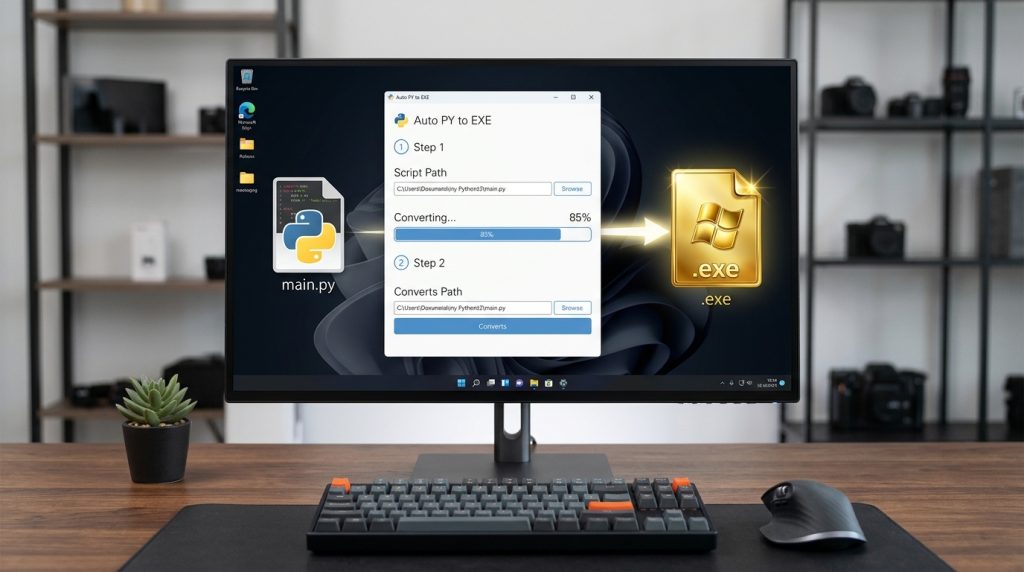
Sharing Python scripts with non-technical colleagues often leads to a support nightmare: explaining how to install Python, configure Windows environment PATH variables, and resolve missing pip package dependencies. The solution is compiling your script into a standalone Windows Executable (.exe) that runs with a simple double-click on any machine.
While PyInstaller is the standard command-line compiler, Auto PY to EXE provides a polished, intuitive web-based graphical interface that eliminates CLI syntax errors.
Step 1: Installation
pip install auto-py-to-exe
auto-py-to-exe
Step 2: Key Configuration Settings
- Script Location: Select your primary entry-point Python file (e.g.,
main.py). - Onefile vs One Directory: Choose One File to bundle all binaries and runtime DLLs into a single portable
.exe, or One Directory for faster startup on large GUI frameworks like PyQt. - Console Window: Select Console Based if your script uses terminal inputs, or Window Based (hide the console) for graphical GUI apps (Tkinter, CustomTkinter, PyQt).
- Icon: Select a custom
.icofile for your desktop branding. - Additional Files: Under the Advanced tab, ensure you add paths to external assets (JSON configs, images, fonts) so they are extracted into PyInstaller’s temporary
sys._MEIPASSruntime directory.