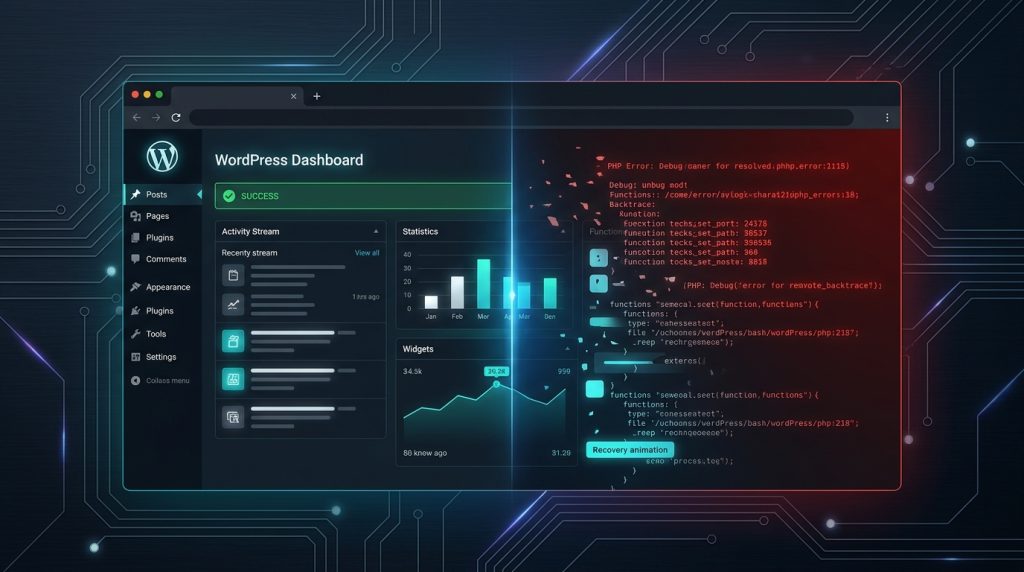
Clicking “Update Now” on a WordPress plugin seems harmless—until your screen suddenly flashes: “There has been a critical error on this website. Please check your site admin email inbox for instructions.” Or worse, you are greeted by the notorious White Screen of Death (WSOD) where neither your front-end nor your /wp-admin panel will load.
This happens when an updated plugin introduces syntax errors, calls deprecated PHP functions, or conflicts with another active plugin. Here is the step-by-step procedure to regain access in under two minutes.
Step 1: Enabling WP_DEBUG to Reveal the Crashing File
By default, WordPress hides raw PHP error messages for security. Connect to your server via cPanel File Manager, FTP, or SSH and open wp-config.php. Locate the WP_DEBUG line and update it:
define('WP_DEBUG', true);
define('WP_DEBUG_LOG', true);
define('WP_DEBUG_DISPLAY', false);
Now reload your broken site. Open /wp-content/debug.log. The very last line will display the exact path and line number of the fatal PHP crash, identifying the culprit plugin instantly.
Step 2: Disabling the Offending Plugin via File System
- Navigate to
/wp-content/plugins/. - Locate the folder of the crashing plugin (e.g.,
/wp-content/plugins/problematic-plugin/). - Rename the folder to something else (e.g.,
problematic-plugin-disabled). - WordPress will immediately detect the missing directory, automatically deactivate the plugin, and restore complete administrative access to your dashboard.